[SOLVED] Using VirtualBox in Bridged mode

Here’s the solution to Bridge mode not working in VirtualBox.

So, have you ever experienced the situation where you wanted to set your VM’s network configuration to Bridged mode, but were unable to select any network adapter? For example:

(Image taken from VirtualBox.org, see reference at bottom of article)

It might be because the proper Service is missing from your host’s network configuration. To fix, go to your host’s network adapters:
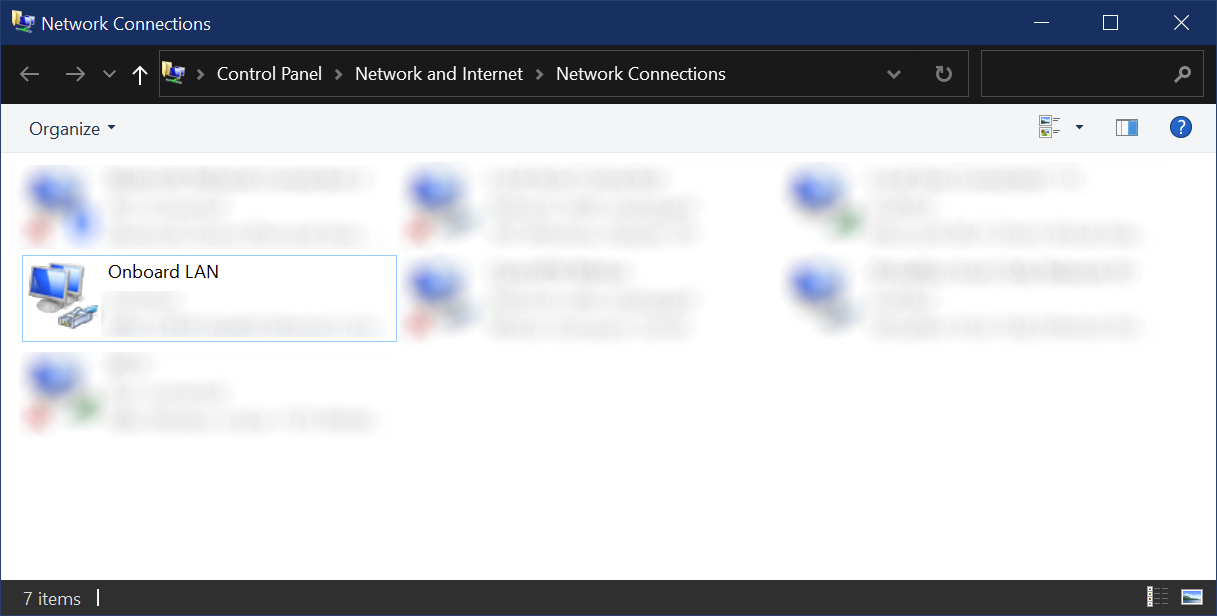
Right click and choose Properties:
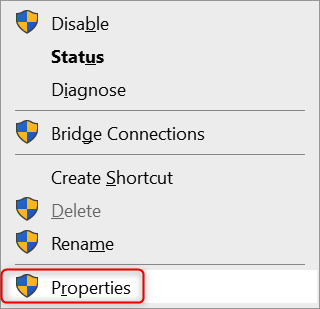
A list of items appears, make sure that the highlighted service “VirtualBox NDIS6 Bridged Network Driver” is available:
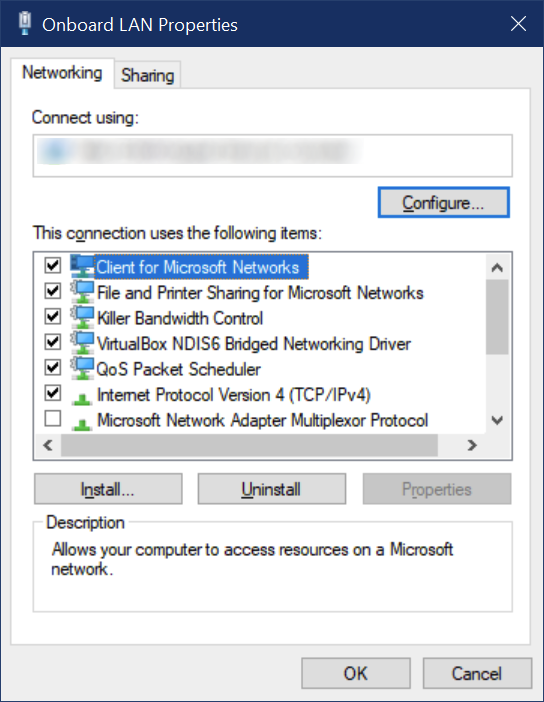
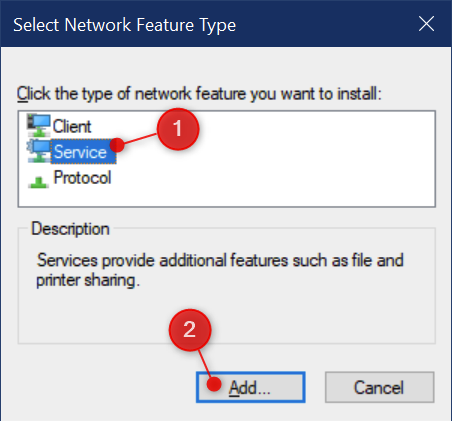
If this service is not available, press “Install…” and choose “Service” and press “Add…”:
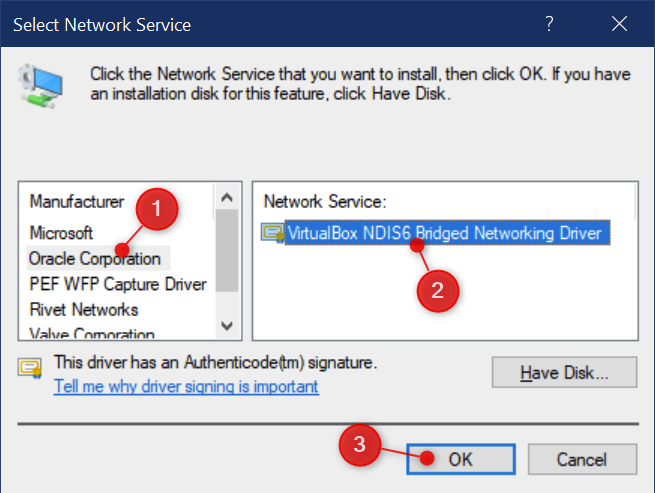
Next, choose “Oracle Corporation” and then “VirtualBox NDIS6 Bridged Network Driver” and press “OK”:
Now close all dialogs to commit the changes. You should now be able to choose the proper network adapter to use in Bridge mode:
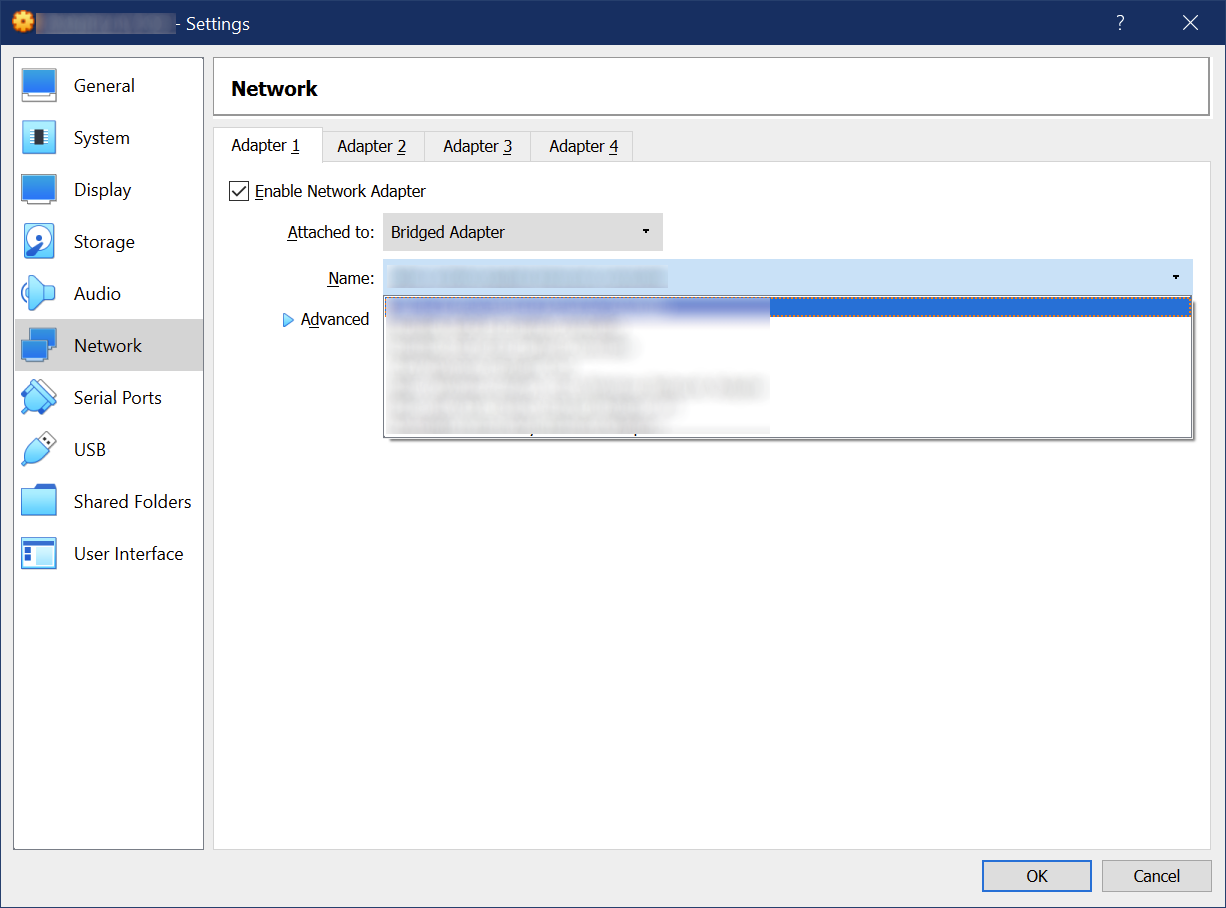
Source: https://www.virtualbox.org/ticket/14127

Definitive guide to restoring admin rights in WordPress

Many out there have experienced the same as I; having lost access to admin functions in WordPress. Here’s my case:

  • working login-account for the admin-interface
  • just not being able to manage user accounts or manually upgrade to newer versions

Many solutions revolve around configuring your account to have admin rights again or to add a whole new account altogether. The account is supposed to have the administrator role again.

But what if just this administrator role has been compromised?

If you’re able to, download the plugin ‘Capabilities Manager Enhanced’ and install it via your FTP client. Next activate it in the admin functions of WordPress.

Now, somewhere in the menu bar, a new entry should appear, titled ‘Capabilities’. When you check out the configuration of the Administrator role, you will find many checkboxes cleared. Simply select them all and apply the changes.

Instant profit. This litteraly took me years to figure out.

Google Chrome

Stutter in HTML5 video’s in Chrome browser

Recently, certain videos on the web didn’t play well for me anymore, when I was using Google Chrome. Other browsers, such as Firefox and Opera (which also provide a HTML 5 video player), would play the video just fine.

What could possibly be wrong?

After searching around a bit, I found the following tip:

  • In the address bar go to ‘chrome://flags’
  • hit ctrl + f and look for ‘video decode’
  • on the entry ‘Disable hardware-accelerated video decode.’ click ‘Enable’
  • restart Chrome


Via VirtuDa comments on Enter what you want to see & hear and this site will generate a music video out of gifs..

Turning off the screen of your LG Smart TV

For those of you who have a LG TV with webOS built in, here’s a little tip.

In case you have your TV hooked up to speakers and some external source, but don’t want to have the screen on while playing, you can in fact turn off the screen relatively easily.

There’s no dedicated quick-access button, but in your TV’s settings you can specifiy that you want to have the screen off for the moment.

To do this, go to your TV’s settings, next to the Picture settings. There open the list under Engery Saving. Here you will find the option to temporarily turn the screen off. After selecting this option and turning off the screen, you can turn the screen of your TV back on by simply pressing any button on your TV’s remote (apart from the power button).


LG webOS Picture Settings

How to Fix the Steam Teamspeak Volume Conflict

I found a helpful article on-line, which I would like to share with you:

This fix goes beyond the Teamspeak and Steam VOIP issues seen on Windows 7 systems.  However, this applies to a majority of users.  Could help other VOIP apps, like Ventrilo or Mumble.

The Problem:
Volume in Teamspeak seems OK; then you start up a game in Steam.  The volume then drops to the point you can hardly hear other users, perhaps not at all, depending on the in-game volume.  If you look at your Volume Mixer, you’ll see the volume bar for Teamspeak has been lowered.

The Reason:
Windows 7 is trying to be nice, and lowering your volume when it detects another communication device.  It’s designed for PC based phone calls, much like how a Bluetooth phone will turn down/off the sound in your car radio for incoming calls.  In our case, Win 7 thinks your Steam VOIP is an incoming call, turning down Teamspeak.

The Solution:
Tell it to stop, who takes PC phone calls anyways?

  • Goto Control Panel
  • Select Sound
  • Select Communications Tab
  • Switch it to “Do Nothing”
  • Select OK<

Disable VOIP Volume Thingy

Note: it should not come as a surprise that this issue also exists under Windows 8/8.1.

Via The Computer Gamer

Disable onscreen keyboard in Windows 8.1

Windows 8.1 thinks that my laptop has a touch screen and therefor deems it necessary to display a little keyboard icon on my task bar, with which I can summon an onscreen keyboard.

Unfortunately, neither does my laptop in fact have a touch screen nor am I interested at all in using that idiotic onscreen keyboard.

So, how does one get rid of that icon? After searching the Interwebs I’m convinced that as of writing, there is no practical solution available. The only way to get rid of the icon (which is a toolbar, by the way), is to disallow any and all toolbars on the task bar.

While not everyone may be pleased with this solution, I’m fine with that. So without further ado, here’s what you need to do:

  1. Start Registry Editor (regedit.exe)
  2. Navigate to: HKEY_CURRENT_USER\Software\Microsoft\Windows\CurrentVersion\Policies\Explorer
  3. Add a new 32-bit DWORD key named “NoToolbarsOnTaskbar” and give it the value of “1”
  4. Log out and log back in

Now the little booger will stay away (along with any and all other toolbars you might have had enabled).

Via Permanently remove Touch Keyboard toolbar from taskbar?

VPN Troubles

Recently I experienced a new kind of problem with Windows 8.1 on my laptop. I was unable to connect to my VPN-server at home. It turned out this was caused by a device missing.

The moment I would try to connect via VPN, Windows would try to comply, but fail in the end with some error message.

Before trying to connect via VPN, there would be no problematic devices listed in Hardware Manager. But afterwards, several miniport devices would be listed as such. Generally it was reported that the required drivers could not be loaded.

Investigation lead me to the Microsoft Support Forum:

  1. In Device Manager, right-click on the non-working miniport, choose Update Driver.
  2. Choose Browse my computer.
  3. In the next window, choose Let me pick driver from a list.
  4. Uncheck Show compatible hardware. From the Manufacturer list, choose Microsoft, and from the Network Adapter list, choose Bluetooth Device (Personal Area Network). (It can be any device the user is allowed to uninstall.)
  5. Back in the device manager, delete the device that just turned into a Bluetooth Device (Personal Area Network).
  6. Reboot.
  7. Delete your VPN information and then enter it again.

(repeat for all problematic miniport devices)

This solved things for me.

Home at last

Quicky: the airplane has just landed. 🙂 I’m back and the coming days I will be doing “post processing”, possibly sorting and posting pictures.

I think, this will be all for now.

How to operate an airplane

Quicky: to adjust the seats on a Cathay Pacific airplane, you press and hold the button in your armrest. While pressed you can slide the seat forward while the back tilts back.

Also, you can bend both extremities of your headrest. This way you can try and sleep (or at least maybe rest), because your head doesn’t roll to the side.

Kamera View

Quicky: watching the airplane take off and land, on the external camera view, is just so cool!

Also, descending through the clouds by night is also very pretty to see. 🙂

Movie time

Quicky: I think I already mentioned, but to be sure… On the airplane to Ōsaka I watched the movie Edge of Tomorrow with Tom Cruise. I loved that!

Right now, I’m watching Guardians of the Galaxy. Yum!

Review: excellent!

Take off

Quicky: it’s raining a lot at Narita. And the captain just informed us that it is very busy today. Take off will be slow this time.

Here’s a thought

Quicky: the trip to Hong Kong will take about 4,5 hours I just heard.

But to the point: I think now I know why people had been standing in line at the gate for so long. The ridiculous amounts of luggage people will bring on the plane! They were maybe making sure that they could store their things in the overhead compartment..

Just wow. Apart from the delay, now we’re already late for departure.

Also, I’m not at the plane I saw land earlier. 😛

Queueing

Quicky: it’s not even close to boarding time, but Asian folks must really like standing in a queue in front of the gate.

I don’t get it. People have a reserved seat, the plane does not depart with people still at the gate, why do you have to be the first one on board and stand in line now, while you can sit and wait for the gate to open?

At the airport, home bound

Quicky: so I’m at the airport, waiting. Luggage has been checked in, passport and boarding pass have been checked. My flight leaves in about an hour and a half, bound for Hong Kong.

I’ve been told that, although my airplane leaves about half and hour late, I will be in time in Hong Kong. Yes, the connecting flight leaves about two and a half hour after the planned arrival, which should leave plenty of time to make up for this delay.

I’m not sure yet at what gate I will have to be in Hong Kong, but I’ll look that up over there. Information is readily available and pretty clear, I’ve noticed on my way here.

Arriving at Narita Airport

Quicky: when you take the Narita Express bus to the airport from Kasai eki (station), you will be taken straight to the airport, which is very convenient. It costs ¥1550.

At the airport however, be prepared to know at which terminal you need to be. Cathay Pacific was at terminal 2, the first of two stops the bus will make.

When arriving, a security check for your passport will be made. This is the time for you to ask the inspector at what terminal you need to be, if you don’t know. Be prepared for the fact that the inspector may not speak English.

Delay

Quicky: now at Narita International Airport. My flight has been delayed for 25 minutes, already… Departure is now in 200 minutes.

Green

Quicky: in the city and alongside of the express way in the city, not much green can be found. But here halfway til Narita, things are much greener and less concrety.

Also, here it is obvious again that most hill sides and sound barriers, so to say, are concrete enforced. It shows, but I suppose that’s only practical.

Note: as you may have surmised, I have not experienced any earthquakes during my stay.

Characteristic

Quicky: one aspect of Japan can be described as rusty. Many things of iron or similar metals or alloys maybe, have lots of rust stains. Bridges, buildings, etc.

Not very nice to look at. I suppose that’s one thing the Japanese save on.

Let me reiterate that the Japanese use stewards everywhere, for which a budget has to be available, I imagine.

Left and right

Quicky: so, this bus driver likes driving on the middle lane a lot. Then you get overtaken on both the right and the left. I wonder if things usually work like this…

Last day

Sunday 9th November

This morning I packed my belongings, had brunch and chatted a bit with Junko-san. As things turned out I was just on time to leave and catch the Narita airport express bus, so I left in a bit of a hurry. That was a bit unfortunate, but on the bright side I will have a good trip to the airport, without transfers and will have time to spare on departure.

On my way to the airport.

More on ambulances

Quicky: on my way home, an ambulance came by. It’s just amazing to see how (IMHO) overly careful they cross a fully cleared intersection… Too slowly, just too slowly…

Wait, what?

Quicky: on my last subway ride of the day, something went wrong. Just after the train departed, it stopped again. Something was announced but I could lot make heads or tails of it.

As the doors opened again, nobody moved, so I figure I do the same. 😛 After a short while, we resumed the ride.

Yes, this was probably quite exceptional. At least in regard to all subway and train rides I had made during my stay in Japan.

Deja vu

Saturday 8th November – last day, kinda

To be fair, tomorrow, Sunday, will be my last day in Japan. I will depart for Narita airport and my flight will take off around 18h local time. Around midnight, local time, I will depart from Hong Kong and around 6:30h, again local time, I will arrive in Schiphol.

What my last day will look like, I don’t yet know. At some point I will have to “hand in” my pocket WiFi, which means I will have no more Internet connection on the go. But I suspect WiFi will be available at the airports.

But we’ll get to that tomorrow.
Read more

Automated train

Friday 7th November

I’m a bit late with the update, but that’s because last night I spent talking with Junko-san and her husband, almost until it was time to check in for the airplane. That is, reserve seats on the airplanes that take me to Hong Kong and Schiphol…
Read more

Wait

Quicky: to make sure you do not wait forever on a waiter (who does the waiting on you), you simply call out “sumimasen”, loudly if need be.

« Older Entries